This chapter explains how it works: the enrollment protocol, the identity layer, what gets written to the TPM, why reinstalling your OS doesn't escape it, and why the line between a corporate management tool and a rootkit is thinner than vendors admit.
The Stack
"Microsoft Device Management" is not a single product. It is a collection of services, protocols, and agents that together form a management plane over every device category Microsoft supports.
| Component | Role | Device scope |
|---|---|---|
| Intune | Cloud-native MDM/MAM engine | Windows, iOS, Android, macOS |
| Entra ID | Identity and trust anchor | All |
| SCCM / MECM | On-prem PC management | Windows, some Linux |
| Azure Arc | Extends management to servers | Windows Server, Linux Server |
| Autopilot | Zero-touch provisioning | Windows |
| Apple DEP / ABM | Zero-touch provisioning | iOS, macOS |
| Android Enterprise | Managed Android profiles | Android |
| Co-management | Simultaneous Intune + SCCM | Windows |
| Defender for Endpoint | EDR, integrates with compliance | All |
These components don't operate independently. Entra ID is the identity foundation everything else builds on. Intune is the policy engine. SCCM is the legacy heavy-lifter. Arc extends the model to infrastructure that wasn't designed for cloud management.

Enrollment: How Each Device Type Gets Pulled In
Enrollment is the process by which a device registers itself with the management tenant and receives its management credential. Everything downstream (policy application, compliance reporting, remote wipe) depends on this step completing successfully. The mechanism differs significantly by device type.
Windows: Autopilot and Manual Enrollment
Manual enrollment requires a user action: Settings → Accounts → Access work or school. Windows contacts the Entra ID discovery endpoint at enterpriseregistration.windows.net, authenticates the user, and receives an MDM enrollment URL. It contacts that endpoint, performs a certificate exchange, and installs the MDM management agent. Three artifacts are written to the device:
- An enrollment certificate, with its private key TPM-bound on capable hardware
- The MDM agent service:
dmwappushsvcandMDMService - Registry state under
HKLM\SOFTWARE\Microsoft\Enrollments\
Autopilot enrollment removes the user action requirement entirely. The OEM collects a hardware hash (a fingerprint of the device's hardware identifiers) and uploads it to the tenant before the device ships. The hash is derived from the device serial number, a TPM-derived 4K hardware hash, the primary NIC MAC address, and the Windows OS product ID.
When the device boots and reaches OOBE with internet access, Windows sends this hash to Microsoft's Autopilot service. The service matches it to a tenant, applies the Autopilot profile, and begins enrollment before any user interaction has occurred. This is the mechanism that makes a clean OS reinstall insufficient: the hash is registered against the hardware, not the software. Reinstall triggers OOBE, OOBE calls Autopilot, Autopilot re-enrolls.
iOS: Apple Business Manager and DEP
Apple devices use Apple Business Manager (ABM) combined with Apple's Device Enrollment Program (DEP). The structure is identical to Autopilot: serial numbers are registered in ABM, and on first activation the device contacts Apple's servers, identifies the associated MDM server (Intune), and enrolls automatically.
The enrollment protocol for iOS is Apple's own MDM protocol, distinct from OMA-DM. Intune translates between its policy model and the Apple protocol via an Apple MDM Push Certificate (a certificate issued by Apple that authorizes Intune to send push notifications and management commands to Apple devices). This certificate expires annually and must be renewed with the same Apple ID it was created with. Letting it expire breaks management of all enrolled Apple devices simultaneously.
| Enrollment type | User data wiped | Management depth | Use case |
|---|---|---|---|
| Device enrollment | No | Full device | Corporate-owned personal use |
| Supervised enrollment | Yes | Deep (kiosk, always-on VPN) | Dedicated or shared devices |
| User enrollment | No | Work partition only | BYOD |
| Web-based enrollment | No | Limited | Lightweight BYOD |
Android: Android Enterprise
Android splits management into work profile (BYOD) and fully managed (corporate-owned). Work profile creates an isolated container alongside the personal profile: the organization manages only the work partition, the personal side is untouched. Fully managed enrollment wipes the device and gives the organization complete control.
| Profile | Scope | Data separation | Typical use |
|---|---|---|---|
| Work profile | Work apps only | Full (separate encryption key) | BYOD |
| Fully managed | Entire device | N/A (single owner) | Corporate dedicated |
| Dedicated device | Kiosk mode | N/A | Single-purpose hardware |
| Corporate-owned work profile | Entire device + work profile | Work and personal separated | Corporate personal use |
Windows Server: Azure Arc
Servers are not enrolled in Intune directly. Instead, they are onboarded to Azure Arc, which installs the Connected Machine Agent on the server. This agent registers the server as an Arc-enabled resource in Azure, enables Azure Policy assignment, enables Defender for Cloud, and on Windows Server 2025+ enables a subset of Intune policies directly.
Arc onboarding requires running an installation script with local admin rights. The agent communicates outbound over HTTPS to Azure endpoints; no inbound firewall rules required. The implication: Arc-enrolled servers are reachable from Azure regardless of whether they're on-premises, in a datacenter, or in another cloud. Tenant security is therefore the security perimeter for all Arc-managed infrastructure.
The Identity Layer: Entra ID, AD, and Hybrid Join
To understand why management behaves differently on different devices, you need to understand where Intune sits relative to the two identity systems it depends on.
Active Directory has existed since Windows 2000. It runs on domain controllers inside the organization's network, handles authentication via Kerberos, and distributes Group Policy. AD domain join is network-bound: the device needs to reach a domain controller to authenticate.
Entra ID is Microsoft's cloud identity platform. Authentication is over HTTPS to Microsoft's global endpoints, meaning it works from any network with internet access. Intune, Microsoft 365, and Azure all use Entra ID as their identity foundation.
Most large organizations run both. A hybrid-joined device is simultaneously joined to on-premises AD and Entra ID, managed by both GPO and Intune, authenticated via both Kerberos and OAuth 2.0.
| Join state | AD joined | Entra joined | MDM manageable | GPO applies |
|---|---|---|---|---|
| Workgroup | No | No | Via manual enroll only | No |
| AD joined only | Yes | No | Via manual enroll | Yes |
| Entra joined | No | Yes | Yes (cloud-native) | No |
| Hybrid joined | Yes | Yes (via sync) | Yes | Yes |
| Entra registered | No | Partial | Via user enrollment | No |

SCCM / MECM and Co-Management
Microsoft Endpoint Configuration Manager (MECM, formerly SCCM) is the on-premises PC management platform. Where Intune is cloud-native and relatively lightweight, MECM is deeply powerful and deeply complex: it handles OS deployment with full imaging pipelines, software distribution with dependency chains, patch management via WSUS integration, and deep hardware inventory.
Co-management is the state where a Windows device runs both the MECM client and Intune enrollment simultaneously. Each management workload (software updates, compliance policy, resource access, endpoint protection) can be independently assigned to either MECM or Intune. When a workload is assigned to Intune, the MECM client stops managing it and defers to the MDM channel.
| Workload | Owner options |
|---|---|
| Compliance policies | MECM or Intune |
| Device configuration | MECM or Intune |
| Endpoint Protection | MECM or Intune |
| Resource access (VPN, Wi-Fi, certs) | MECM or Intune |
| Windows Update policies | MECM or Intune |
| Client apps | MECM or Intune |
Why Reinstalling the OS Doesn't Help
Three independent mechanisms make OS reinstallation insufficient to escape management on a corporate device. They operate at different hardware layers and none of them are affected by a disk wipe.
The Autopilot Hash
Covered above. The hardware hash is registered in the tenant against the physical device. A clean reinstall triggers OOBE, OOBE calls Autopilot, and the device re-enrolls. The hash predates the OS installation and survives its removal.
TPM-Bound Enrollment Certificates
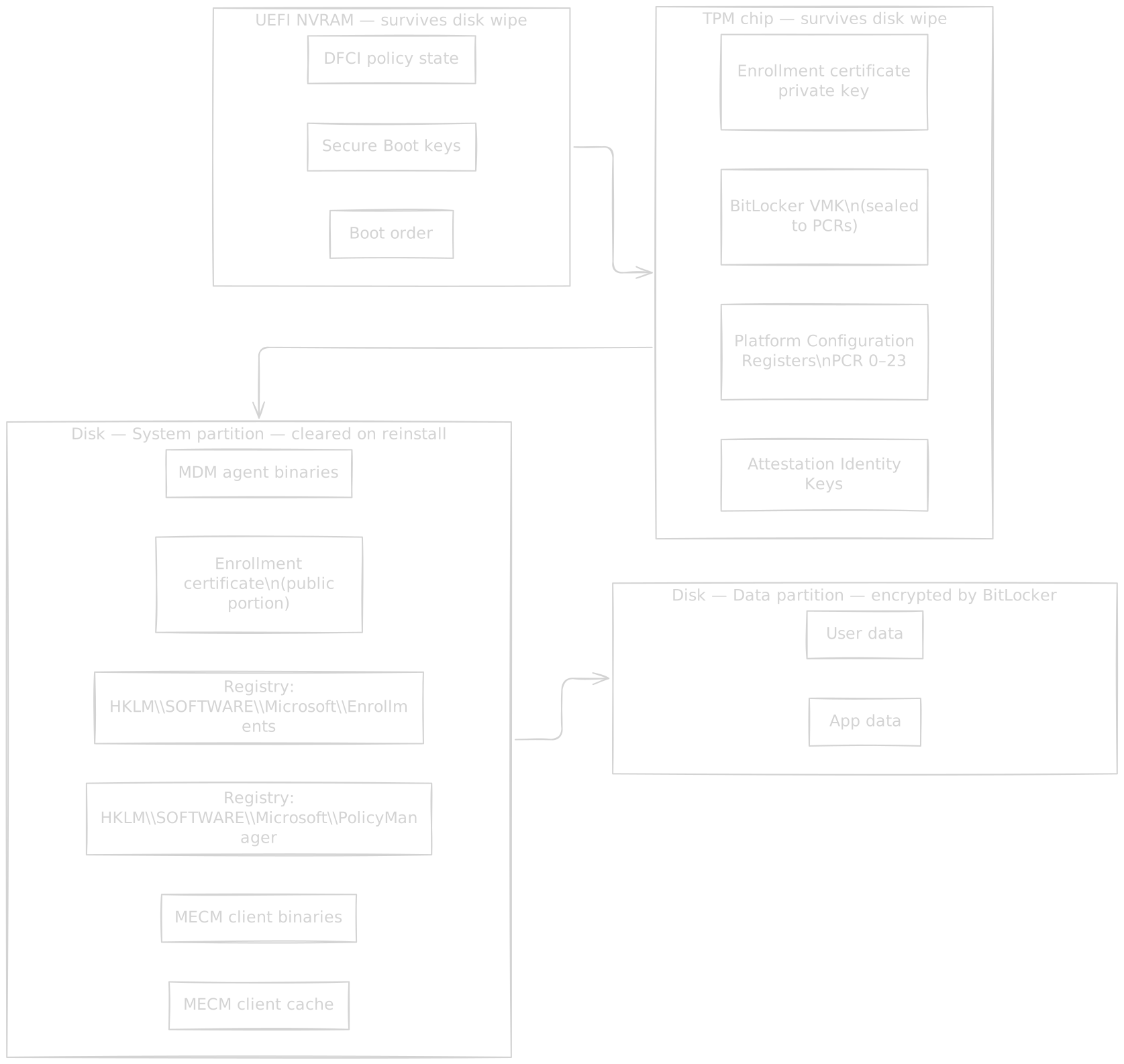
On TPM-capable devices, the enrollment certificate's private key is generated inside the TPM using TPM2_Create. The key is marked non-exportable: it never exists in RAM or on disk outside the TPM's hardware boundary. The OS holds a reference to the key, not the key itself. A disk wipe clears the reference. The key persists in the TPM.
This has two consequences. An attacker who gains physical access to the device cannot steal the enrollment credential by reading the disk. And a user who reinstalls Windows cannot destroy the enrollment credential; re-enrollment after reinstall uses the same TPM-backed key material.

DFCI: Device Firmware Configuration Interface
DFCI is a management interface between Intune and the device's UEFI firmware, supported on hardware from Surface, Dell, HP, and Lenovo with appropriate firmware. Via DFCI, an MDM admin can disable booting from external media, disable the camera and microphone at firmware level, lock BIOS settings, and enforce Secure Boot, all written to UEFI NVRAM, not to disk.
These policies survive OS reinstalls because they live in firmware. Installing Linux instead of Windows doesn't help: if Secure Boot is enforced via DFCI with a specific key set, the device refuses to boot any unsigned OS. The management surface exists below any operating system.
Memory and Storage: What Gets Written Where
Understanding where management state lives at the hardware level matters for both security analysis and troubleshooting. The layers are distinct: UEFI NVRAM, the TPM chip, the system partition, and the data partition each hold different types of management state, with different persistence characteristics.
TPM Platform Configuration Registers
The TPM maintains 24 Platform Configuration Registers (PCRs) on TPM 2.0 that record measurements of the boot sequence. Each PCR accumulates measurements by hashing new values together with old ones; once written, a PCR value can only change by extending it. BitLocker uses PCR values to seal the Volume Master Key: the key is only released if the PCR values match what they were when BitLocker was enabled.
| PCR | Measures |
|---|---|
| 0 | UEFI firmware |
| 1 | UEFI firmware configuration |
| 2 | UEFI drivers and option ROMs |
| 4 | Boot manager |
| 7 | Secure Boot state |
| 11 | BitLocker access control |
| 12 | Highly volatile configuration |
If firmware is updated, Secure Boot is disabled, or a different bootloader is loaded, the PCR values change and the TPM refuses to release the BitLocker key. The drive stays encrypted. This is tamper-evident boot: the disk cannot be read without either knowing the recovery key or maintaining the exact boot configuration that was in place when BitLocker was enabled.
BitLocker Key Hierarchy
BitLocker uses a two-layer key structure. The Full Volume Encryption Key (FVEK) encrypts the actual disk sectors. The Volume Master Key (VMK) encrypts the FVEK. The VMK is protected by one or more protectors: the TPM, a recovery key, or a TPM+PIN combination. Any single protector can unlock the VMK, which then unlocks the FVEK, which then decrypts the disk.

The layering serves a purpose. The recovery key can unlock the drive without the TPM, useful when the device is being serviced or the TPM is cleared. The TPM can be cleared without losing data, because the recovery key provides an independent path. The FVEK never changes when the VMK protectors are updated; re-keying a protector doesn't require re-encrypting the entire disk.
Encryption Algorithms
| Context | Algorithm | Key length | Notes |
|---|---|---|---|
| BitLocker default | AES-CBC | 128-bit | Legacy compatibility mode |
| BitLocker via Intune policy | AES-XTS | 256-bit | Recommended, Windows 10 1511+ |
| MDM enrollment certificate | RSA | 2048-bit | TLS channel to Intune |
| Entra ID tokens | RSA | 2048-bit | JWT signing |
| MECM client auth | PKI (org CA) | 2048-bit typically | Site-issued certificate |
| Arc agent channel | TLS 1.2/1.3 | ECDHE + AES-256 | Outbound HTTPS only |
What Lives in RAM During a Managed Session
The FVEK must be in RAM for the CPU to decrypt data reads in real time. It is loaded into kernel memory when the volume is mounted and stays there for the duration of the session. It is not accessible to user-mode processes (it lives in kernel space), but it is present in physical RAM on a running system.
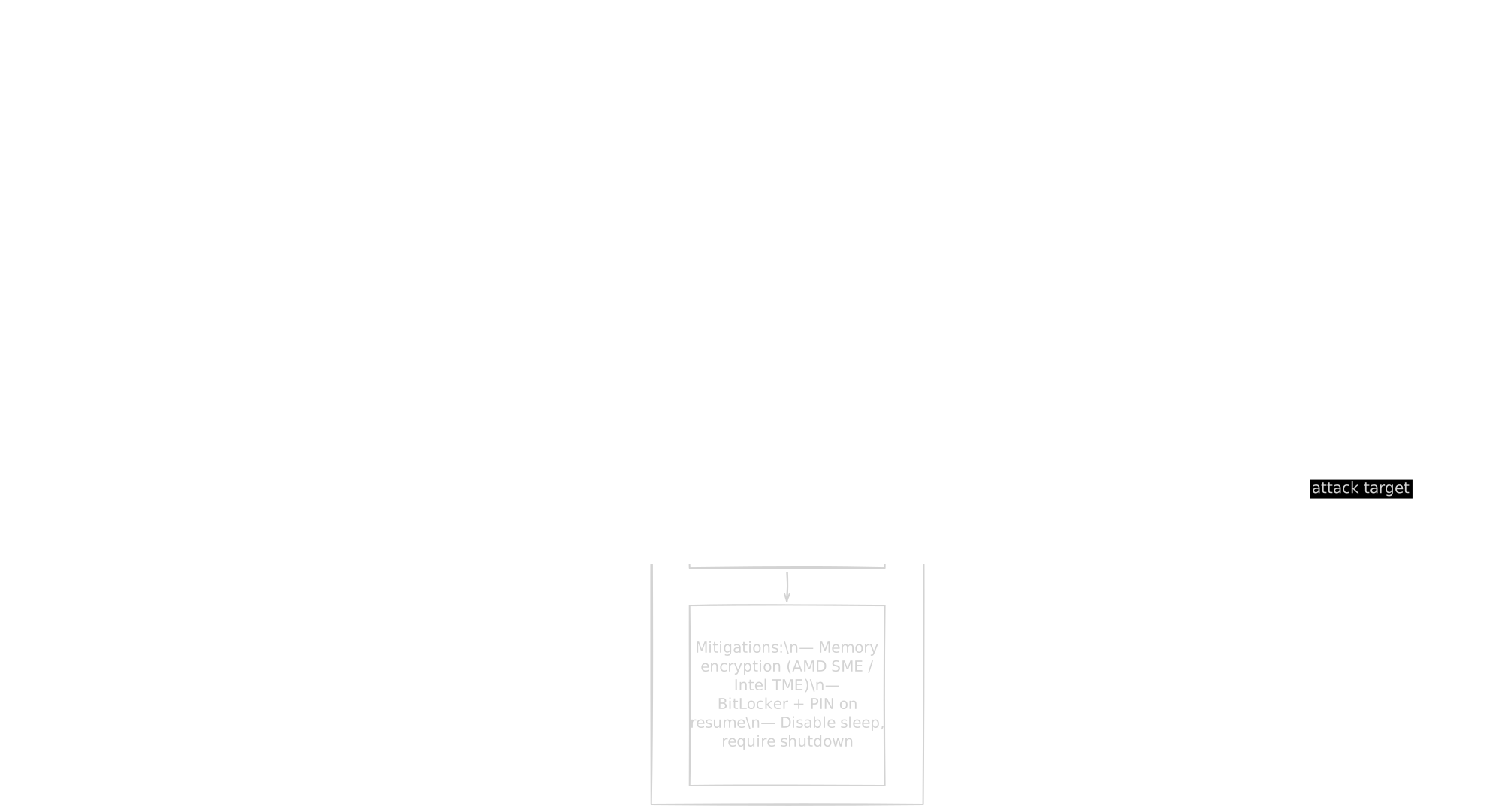
This is the target of cold boot attacks. Freezing the RAM modules (literally, with compressed air) slows electron drift enough that the contents can be read after the device is powered off and the RAM is transplanted to an attacker-controlled machine. The FVEK is present in that memory. The attack is defeated by memory encryption (AMD SME/SEV or Intel TME, which encrypt RAM contents in hardware) and by configuring BitLocker to require a PIN on resume from sleep, forcing re-authentication before the key is loaded.
MDM vs Rootkit: The Honest Comparison
This comparison makes vendors uncomfortable. It is worth making precisely.
A rootkit is malware that establishes persistent, privileged access to a system below the user's visibility and control, survives OS reinstalls, and can execute arbitrary code and exfiltrate data. A fully deployed corporate MDM configuration, using Autopilot, TPM-backed certificates, DFCI policies, and Scripts & Remediation, compares like this:
| Capability | Rootkit | Corporate MDM (full deployment) |
|---|---|---|
| Persists across OS reinstall | Often | Yes (Autopilot + TPM) |
| Survives disk wipe | Sometimes (firmware rootkits) | Yes (DFCI + TPM) |
| Executes arbitrary code as SYSTEM | Yes | Yes (Scripts & Remediation runs PowerShell as SYSTEM) |
| Exfiltrates device data | Yes | Yes (inventory, location, installed apps) |
| Blocks user removal | Yes | Yes (corporate enrollment lock) |
| Operates below OS level | Sometimes (bootkits) | Yes (DFCI writes to UEFI NVRAM) |
| Legitimate certificate chain | No | Yes (Microsoft-issued) |
| Legal authorization | No | Yes (employer owns device) |
| User disclosure | No | Nominally yes |
The differences are legal and organizational, not technical. A corporate MDM stack with full capabilities has more persistent access to a device than most malware. The trust model is: you trust your employer, your employer trusts Microsoft, Microsoft issues the certificates. RBAC misconfiguration in this context is not a minor finding; it is a misconfiguration in a system with rootkit-level access to every device in scope.
Why an Attacker Can't Easily Weaponize MDM (and Where They Can)
The Single Enrollment Constraint
Windows enforces one MDM enrollment per device. An attacker who gains access to an already-enrolled device cannot silently add a second enrollment: unenrolling the existing one generates compliance alerts and is visible in the tenant. This is a meaningful structural protection.
Credential Requirement
Enrolling into a tenant requires valid Entra ID credentials for that tenant. Social engineering is the most realistic attack path: an attacker who can convince a user to enter credentials for an attacker-controlled tenant gains enrollment.
The Rogue Tenant Attack
The dangerous inversion is rogue MDM enrollment on unmanaged personal devices. If an attacker creates an Entra ID tenant and convinces a user to enroll their personal device (framed as a work access requirement, a software distribution portal, or a "security compliance" step), they gain a persistent management channel backed by a legitimate Microsoft certificate. The attacker can push apps, configuration, and scripts, invoke remote wipe, and collect device inventory. This is a corporate-grade persistent access mechanism delivered through normal Microsoft tooling, requiring no exploit and no malware.
The attack is underreported because it requires social engineering. It is particularly effective against users who are already accustomed to employer-driven enrollment requests.
Arc and the Server Attack Surface
Arc-enrolled servers communicate outbound to Azure. If the Azure tenant is compromised, the attacker has management access to every Arc-enrolled server via Azure Policy and the Connected Machine Agent's run command feature. For organizations running hybrid infrastructure with Arc, the cloud tenant is the security perimeter for on-premises servers. A tenant-level breach is equivalent to domain compromise.
Enrollment Errors and Diagnostics
Windows Enrollment
| Error code | Meaning | Fix |
|---|---|---|
| 0x80180026 | MDM enrollment not allowed for user | Assign Intune license; check MDM user scope in Entra ID |
| 0x80180014 | MDM authority not configured | Set MDM authority in Intune tenant admin |
| 0x80CF0437 | Clock skew (device time differs from server by more than 5 minutes) | Sync device clock via NTP |
| 0x80070774 | Enrollment server unreachable | Check firewall rules for Intune service endpoints |
| 0x800705B4 | Timeout during enrollment | Usually transient, retry; check proxy configuration |
| 0x80180001 | Device already enrolled | Unenroll first; check and clear Enrollments registry key |
Autopilot
| Issue | Likely cause | Fix |
|---|---|---|
| Hash not found | Hash not uploaded or uploaded to wrong tenant | Re-run Get-WindowsAutoPilotInfo, re-upload to correct tenant |
| Profile not assigned | No Autopilot profile targeting the device | Assign profile to All Devices or specific device group |
| Enrollment Status Page hangs | App or policy deployment stalling ESP | Check ESP blocking apps; review Intune assignment filters |
| Device joins wrong tenant | Hash registered in multiple tenants | Remove hash from incorrect tenant |
Hybrid Join
Check status with dsregcmd /status. Key fields:
AzureAdJoined      : YES   ← Entra join complete
DomainJoined       : YES   ← AD join complete
WorkplaceJoined    : NO    ← should be NO on a corporate device
TenantId           : [guid]
DeviceAuthStatus   : SUCCESS
If AzureAdJoined shows NO on a device that should be hybrid-joined: Entra Connect may not have synced the computer object yet (default interval is 30 minutes), or the device hasn't run dsregcmd /join or rebooted since domain join.
TPM Attestation Failures
TPM attestation failures during enrollment are almost always firmware-related. Steps: check TPM firmware version with Get-Tpm in PowerShell, compare against the OEM's minimum required version for attestation, update TPM firmware via the OEM's update tool (Dell Command Update, HP BIOS Update, Lenovo System Update). If attestation still fails after a firmware update, Clear-Tpm is the last resort: it destroys all TPM-bound keys, requires the BitLocker recovery key to regain access to encrypted volumes, and forces re-enrollment.
iOS: Common Failures
| Issue | Cause | Fix |
|---|---|---|
| Push certificate expired | Apple MDM Push Cert expires annually | Renew in Intune using the same Apple ID used to create it |
| Device not supervised | Policy requires supervision | Re-enroll via ABM or Apple Configurator 2 |
| ABM server token expired | ABM sync token has a one-year expiry | Renew token in Intune → Enrollment → Apple → ABM |
The Policy Pipeline
Once enrolled, Windows devices check in with Intune approximately every 8 hours. iOS and Android also default to 8-hour intervals but respond to push notifications (APNs for iOS, FCM for Android) that trigger an immediate check-in. Arc-enrolled servers maintain a continuous heartbeat.
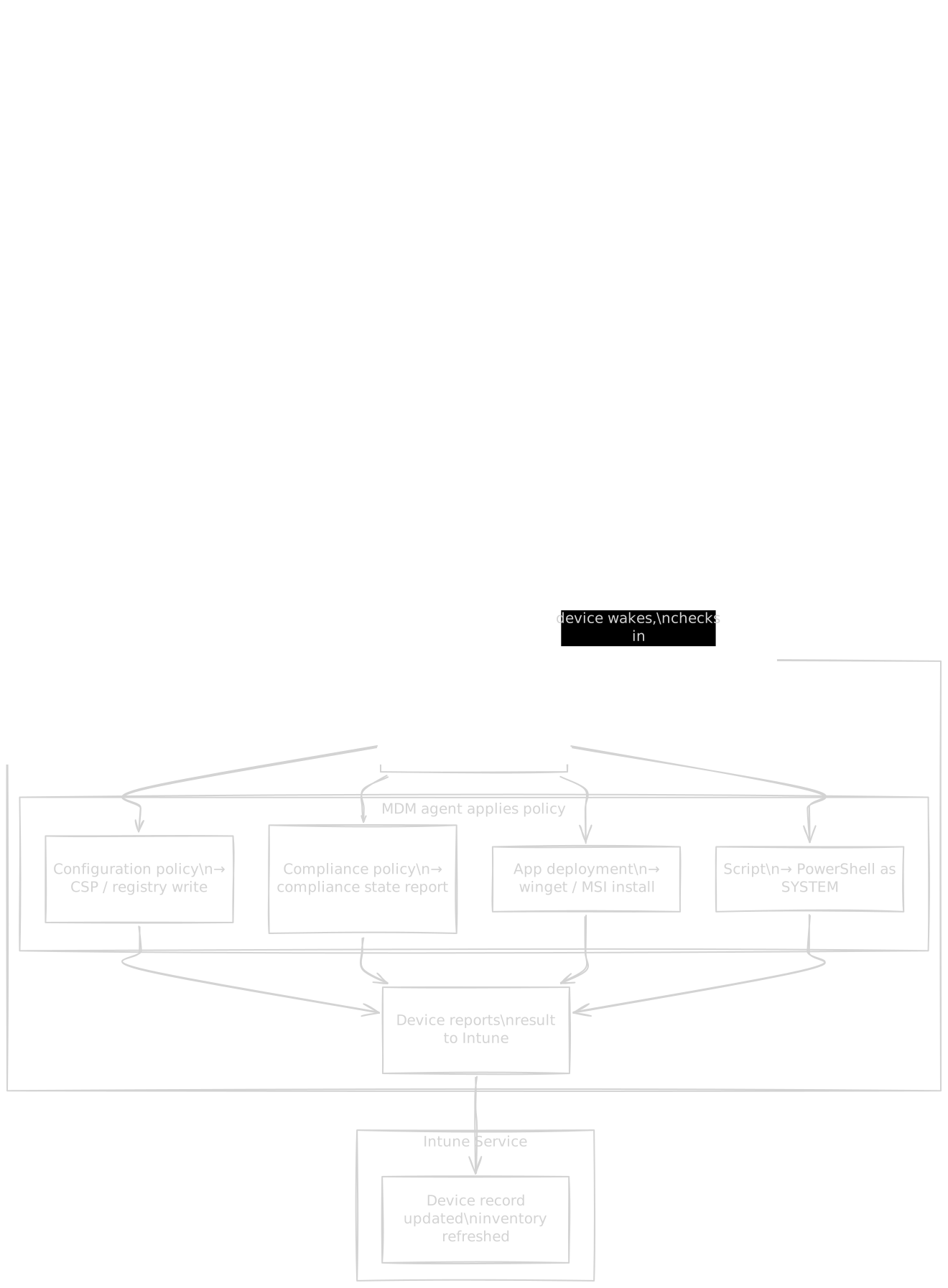
Policy is applied through Configuration Service Providers (CSPs), an abstraction layer that maps OMA-URI policy paths to registry keys, services, and system settings. When Intune sends a policy, it sends an OMA-URI and a value. The MDM agent looks up the CSP, which writes the setting to the correct location. This is why MDM policy and Group Policy can coexist on a hybrid-joined device without direct path conflicts: GPO writes under HKLM\SOFTWARE\Policies\, MDM writes under HKLM\SOFTWARE\Microsoft\PolicyManager\. Both paths may hold values for the same logical setting simultaneously, and merge behavior determines which wins.
| Device type | Default check-in interval | Push-triggered minimum |
|---|---|---|
| Windows | 8 hours | ~5 minutes via WNS |
| iOS | 8 hours | ~1 minute via APNs |
| Android | 8 hours | ~5 minutes via FCM |
| macOS | 8 hours | ~5 minutes |
| Windows Server (Arc) | Continuous heartbeat | Near-real-time |